Get Acquainted with the Phone Screen
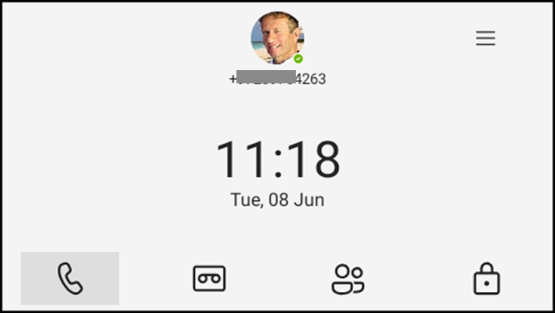
The following gets you acquainted with the phone’s user interface. The figure below shows the phone's home screen, aka the phone's idle screen.
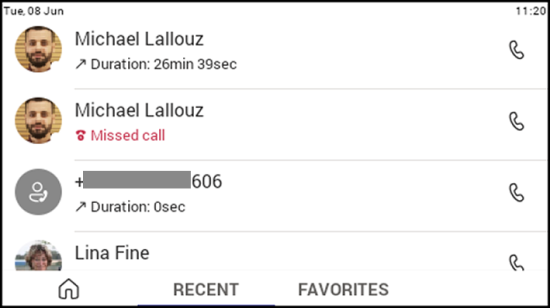
The following figure shows the phone's Calls screen.
The following table describes the phone's home screen.
|
Item |
Description |
|---|---|
|
|
The phone menu. Select it to open the menu shown in the figure following this table. |
|
Calls |
|
|
People |
If a contact has multiple numbers, the phone screen allows the user to select from a drop-down menu the intended contact method. |
|
Voicemail |
|
|
Lock |
Select the tab to lock the phone. This works only if a PIN has been set up (see Configure Teams Application Settings). |

The following figure shows the user's presence status screen. To access this screen,
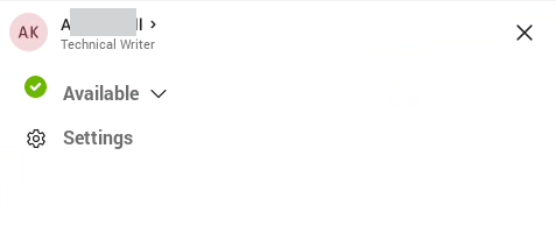
Use this table as reference.
|
Item |
Description |
|---|---|
|
Presence status |
|
|
Settings |